
INTERIOR STUDIOS / PROJECT OPERATIONS
StudioDesk / 01
Keep the quote connected
to the cost.
The client agreed to one version. Purchasing moved on. Costs kept changing. StudioDesk brings those records into one inspectable project workflow.
- THE WORK
- Workflow, interface & implementation
- THE USER
- One local operator
- THE PROOF
- Editable browser demonstration
- THE BOUNDARY
- Fictional records · Windows installer unverified
01 / THE OPERATING PROBLEM
A quotation is only the beginning of the job.
An interior studio can hold the estimate in a spreadsheet, supplier commitments in messages and actual expenses in another file. The difficult question is what those records mean together, for the same project.
Designed to exploreA studio owner who needs project quotations, supplier commitments and recorded costs to stay connected.
The question
The record to inspect
Which version did we send?
Preserved quotation revisions
What have we committed to buy?
Supplier orders linked to a revision
How much have we actually spent?
Recorded expenses beside the project budget
THE WORKFLOW / CONNECTED RECORDS
One action should explain the next.
A reading map of the demonstration. Open the app to change sample records.
02 / THE VISUAL FEATURE TOUR
See the screen.
Inspect the decision.
Four parts of the workflow, shown with actual interface captures. Enlarge any screen, then follow the task inside the working demo.
01 / PROJECTS & BUDGETS
Start with the project that needs attention.
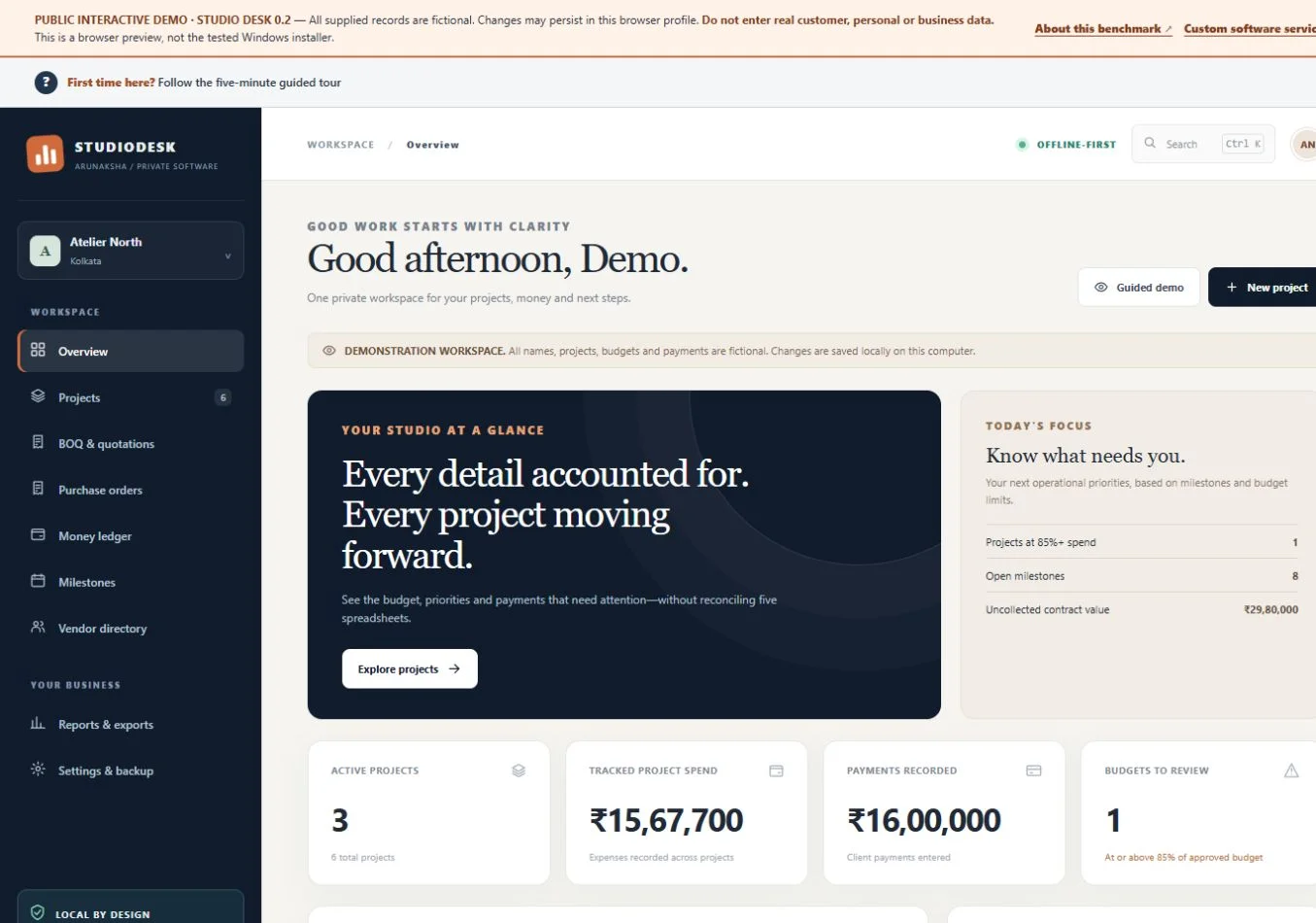
The overview brings budget pressure, recorded receipts and upcoming milestones into view. Projects hold client details, contract values, stages and spending limits.
Budget, contract value and payments are different records. A healthy-looking payment balance should not hide a project approaching its spending limit.
TRY THIS IN THE DEMO
- Open Overview and review Today’s focus.
- Choose Projects, then inspect Riverview Residence.
- Compare its stage, recorded costs and budget.
You can inspect a cost position without opening a separate record for every expense.
Open StudioDesk02 / BOQ & QUOTATIONS
A new estimate should not erase the old agreement.
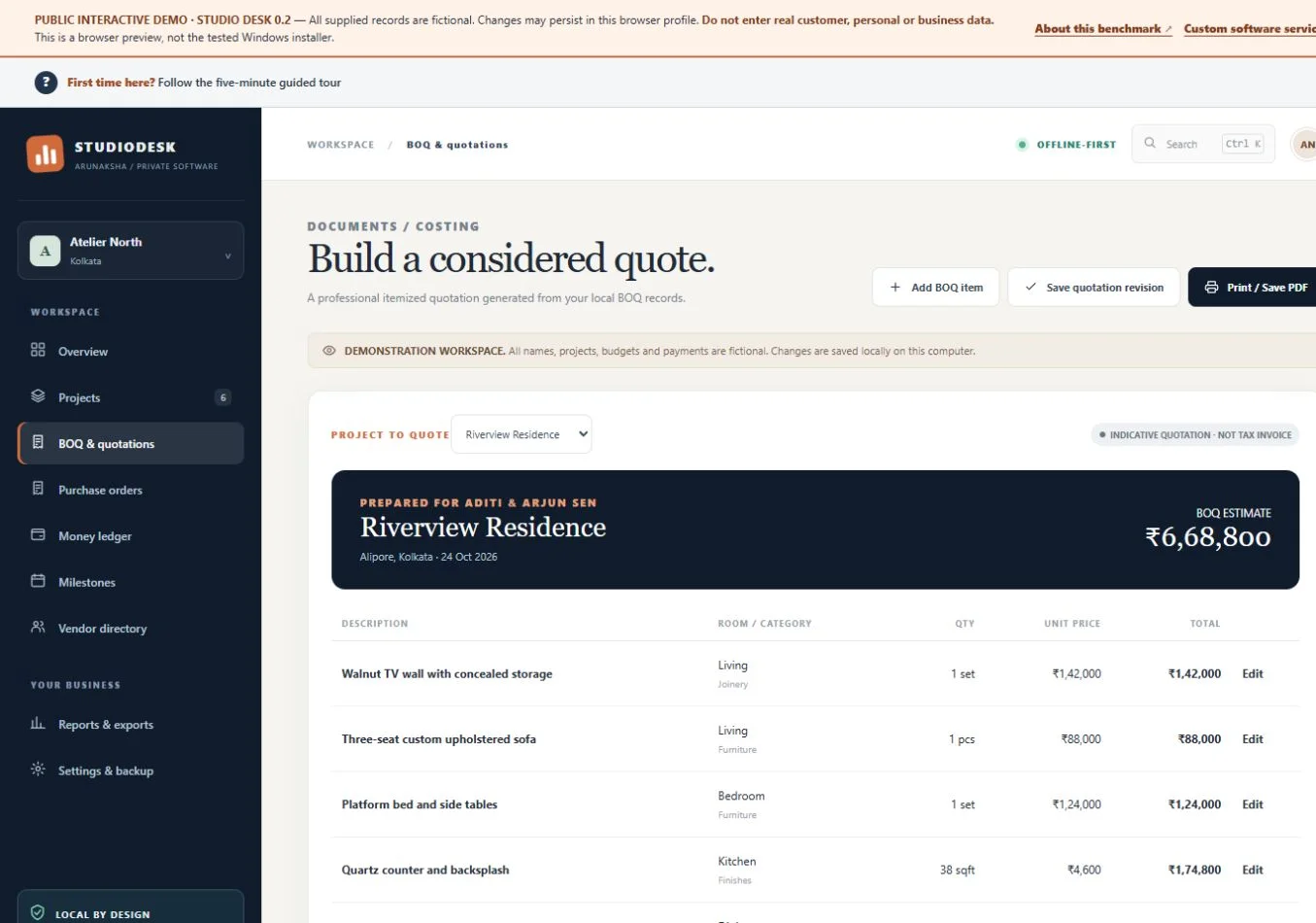
Build the bill of quantities with quantities and unit prices, then save a revision. Earlier revisions preserve the values they contained. Sent and approved statuses are manually recorded by the operator.
The application preserves versions instead of treating a quotation as one endlessly editable total. There is no live client approval portal in this demo.
TRY THIS IN THE DEMO
- Open BOQ & quotations and choose a sample project.
- Inspect line items and existing revisions.
- Change a fictional value and save a new revision.
The earlier saved revision should retain its own quoted values.
Open StudioDesk03 / SUPPLIERS & MONEY
An order placed is not an expense paid.
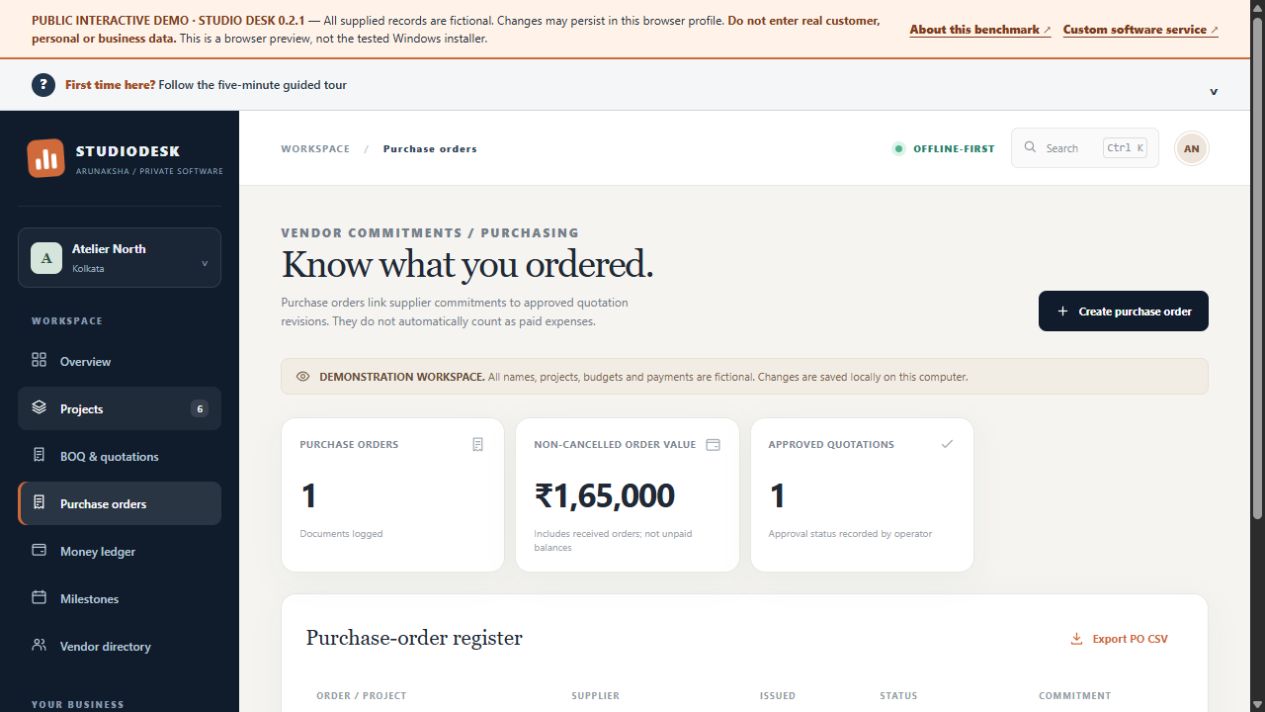
Purchase orders record supplier commitments and can reference an approved quotation revision. The vendor directory holds supplier records. Money ledger entries separately record actual expenses and receipts.
Committing to buy, spending money and receiving money must remain separate events. Combining them would distort the project’s financial picture.
TRY THIS IN THE DEMO
- Open Purchase orders and inspect a linked quotation.
- Review the supplier in Vendor directory.
- Open Money ledger and compare expenses with receipts.
A supplier commitment does not silently become a recorded payment.
Open StudioDesk04 / REPORTS & RECOVERY
A useful record can be inspected and taken away.
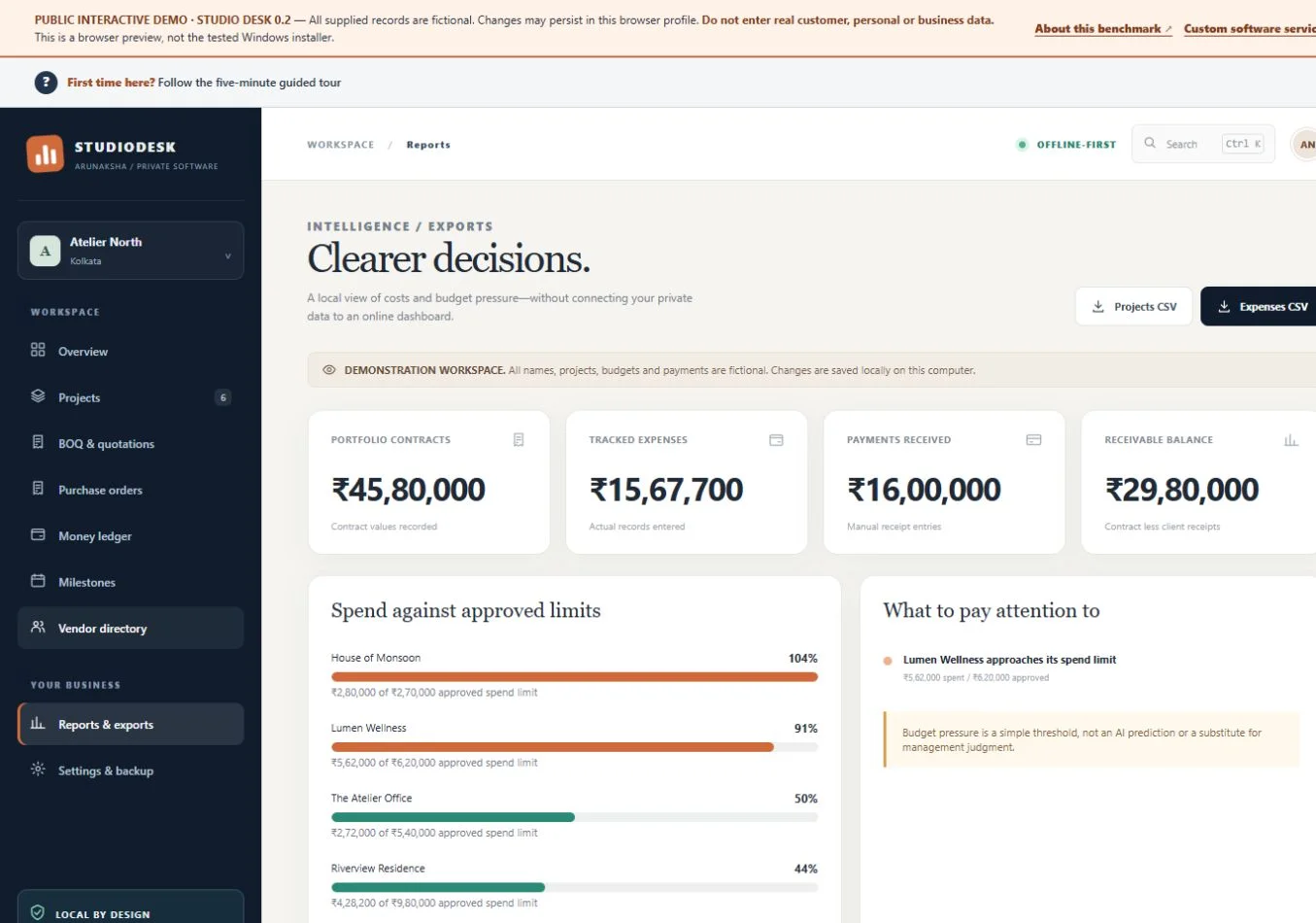
Reports compare project values and spending. CSV exports support further review. Settings & backup provides workspace exports, including an optional encrypted JSON backup.
Export and recovery belong to the operating workflow. Browser storage can be cleared; an application should make that risk and the recovery route visible.
TRY THIS IN THE DEMO
- Open Reports & exports and inspect the budget comparison.
- Download a sample CSV.
- Explore Settings & backup and export a backup.
Keep exported backups separately. Test restore deliberately, rather than replacing a workspace casually.
Open StudioDesk03 / THE DESIGN STORY
The interface follows
the business rule.
The starting point was the owner’s next decision: which record is reliable, what can happen now, and what still needs attention?
Preserve the agreement
Saved revisions keep a historical quotation distinct from today’s edits.
Separate commitments from cash
Purchase orders, expenses and receipts answer different business questions.
Make recovery visible
Backup validation and conflicting-save checks protect the record workflow.
My role: define the workflow, design the interface and implement the demonstration. These are independent portfolio examples, not commissioned client results or measured business improvements.
04 / YOUR TURN
Follow one complete
business story.
Keep this guide open beside the demo. Use only invented values. The route below follows the dependency between records rather than asking you to click through every menu.
Launch StudioDesk- 01
Inspect Riverview Residence in Projects.
- 02
Save a fictional quotation revision.
- 03
Record approval manually and inspect purchasing.
- 04
Compare an expense and receipt in Money ledger.
- 05
Review Reports & exports, then save a backup.
WHAT THIS EXAMPLE DOES — AND WHAT IT DOES NOT PROVE
A working demonstration.
A defined boundary.
This is a fictional studio demonstration, not a deployed client system. It does not prove a tested Windows installer, OS-protected desktop storage or native migration. Windows acceptance is a separate delivery requirement.
Changes stay in the browser profile. No account or shared cloud workspace is provided. Use fictional information only; do not enter customer data or passwords.
BEFORE YOU EXPLORE
The practical questions.
Can I change the sample records?
Yes. Use fictional information only. Changes persist in this browser profile and may be lost when browser data is cleared. Export a backup to retain the sample workspace.
Is this a Windows application I can download?
This link opens a browser demonstration. A Windows installer, device storage and replacement-device recovery require separate implementation and clean-device acceptance testing.
Does my project have to look or work like this?
No. These examples demonstrate interface design and connected business rules. Your fields, workflow, documents, rights, price and acceptance criteria are agreed for your project.
What if the workspace cannot open?
Use the application’s recovery guidance. Preserve or export the existing records before attempting a deliberate restore or reset. A browser workspace is not a separately stored backup.
YOUR BUSINESS / YOUR WORKFLOW
What would this need
to do for you?
The demonstration is the starting point for a conversation. Your process sets the fields, business rules, documents and recovery requirements. Scope, price, rights and support are agreed before development.